Python Tool Troubleshooting
Install ANELLO Python Program
PIP is Python’s package manager and it is usually installed by default in Python installations. You can check its installation by running the following in your command prompt or terminal:
pip --version
If you receive an error that pip cannot be found, we recommend uninstalling and re-installing Python.
cd user_tool
pip install -r requirements.txt
If the above command fails, you may need to replace “pip” with “pip3”, “python -m pip” or “python3 -m pip”.
On some Linux systems, matplotlib and numpy dependencies must be installed with apt instead of pip. You can get around this by manually running:
sudo apt install matplotlib
sudo apt install numpy
Or if you already installed requirements.txt and ran the program, but received a matplotlib error:
pip uninstall matplotlib
sudo apt install matplotlib
Starting Feb 2024, PySimpleGUI started requiring a license for their new version 5 release. If you have any issues with license requests, please run:
pip uninstall PySimpleGUI
pip install -r requirements.txt
If you still have issues installing packages after trying the above steps, you may need to re-install python to ensure pip is installed correctly. Note that as of Nov 2023, we noticed some issues with Python 3.12 and the corresponding pip supporting the necessary dependencies. If you are using Python 3.12 and experience issues with specific packages, please revert to Python 3.11 and try again.
If you experience errors or warnings which may be related to access, please be sure to run your command window as administrator. Other access issues may be related to internal firewall or other security features, so please check with your IT team if you are unable to install any Python packages.
Run Python Program
After installing dependencies and running user_program.py, you should now see the System Status and Main Menu, as shown below.
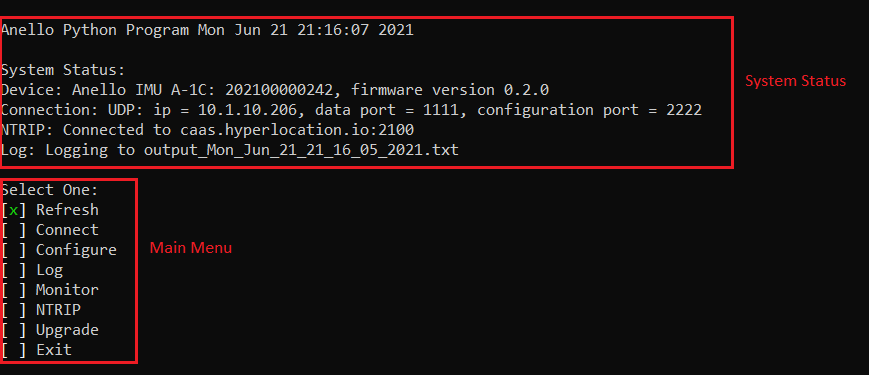
Figure 4: ANELLO Python Program Home Screen
The main menu actions are:
Refresh: Refresh the display to see new system status
Connect: Connect to the unit over COM or UDP
Restart Unit: Restart the unit
Unit Configuration: Edit unit configurations such as output data rate
Vehicle Configuration: Set lever arms such as to antennae and vehicle center
Log: Collect GPS, IMU, and INS data and convert to CSV
Monitor: Opens a display showing the real-time INS message contents
NTRIP: Connect to a server for GNSS corrections
Upgrade: Change the unit’s firmware version
Exit: Exit the python program
Connect to ANELLO Unit
For information on the interfaces, ports, and baud rates for your ANELLO unit, see Communication & Messaging.
If the auto detection fails, you can try manual connection. First check that the ports associated with your ANELLO unit are recognized by your computer. On Windows, use the device manager to find the COM ports. On Mac and Ubuntu, use the terminal and change directory to /dev, and check for ports associated with the ANELLO unit, typically named something like tty.usbserial-xxx.
Drivers
If you are using the EVK and four COM ports do not show in the manual connection mode or your computer’s device manager, you may need to install the FTDI drivers
If you are using the Ground INS or IMU and the two ports do not show in the manual connection mode or your computer’s device manager, you may need to install the CableCreations drivers for the RS-232 to USB cable. This can be found by installing the zip file here. This YouTube video <https://www.youtube.com/watch?v=wEsv6_a0YTs> can be helpful resource for walking through those steps.
Increasing User Permissions
On Ubuntu or other operating systems, the program may not have permission to access serial ports causing the connect step to fail. This can be fixed by increasing user permissions or running as root.
The user may need to be added to groups “tty” or “dialout” to access the serial port.
sudo usermod -a -G tty <your user name>
sudo usermod -a -G dialout <your user name>
Then log out and back in for the permissions to apply.
Running as Root
Running as root may also help with user permisions issues, but note that root may have a different default python. Check your python location with:
which python
then run as root using that path to python:
sudo <path to python> user_program.py
On Windows, the firewall can block communication on UDP ports. When this issue happens, you can connect by UDP in user_program.py and read/write configurations, but the logs and monitor are empty.
To fix:
In Windows start menu, search “firewall”, then click “Firewall & network protection”
Click “Allow an app through firewall”
In the popup: click “Change Settings”
Scroll down to see if “Python” is in the list. If not, click “allow another app” -> “Browse” and select your python.exe
Check the “public” and “private” boxes for Python, then click “ok”.
If you have multiple Python versions installed, ensure firewall lists the version you use to run user_program.
in cmd: check the Python location and version with:
where python
and
python --version
Use that path while adding Python in the firewall settings.
Or select Python in the firewall list, click “details” and verify the path matches.